Internet Explorer 9: Difference between revisions
From NEOSYS User Support Wiki
Jump to navigationJump to search
No edit summary |
No edit summary |
||
| Line 1: | Line 1: | ||
#'''Save all your work and close ALL your IE windows''' | #'''Save all your work and close ALL your IE windows''' | ||
#'''Open up a new IE window''' | #'''Open up a new IE window''' | ||
#'''Click on Tools''' <BR> [[IMAGE:IE9_Click on Tools.JPG]]<BR> <BR> '''OR Alternatively'''<BR> <BR> [[IMAGE:IE9_Click on Tools-2.JPG]]<BR> | #'''Click on Tools''' <BR>'''Note:''' If you cannot view the TOOLS option then you can click on the '''ALT''' key while in Internet Explorer to display it[[IMAGE:IE9_Click on Tools.JPG]]<BR> <BR> '''OR Alternatively'''<BR> <BR> [[IMAGE:IE9_Click on Tools-2.JPG]]<BR> | ||
#'''Click on Internet options''' <BR> [[IMAGE:IE9_Click on Internet Options.JPG]]<BR> | #'''Click on Internet options''' <BR> [[IMAGE:IE9_Click on Internet Options.JPG]]<BR> | ||
#'''Click the General tab, and then, under Browsing history, click Delete''' <BR> [[IMAGE:IE9_Click on Delete.JPG]]<BR> | #'''Click the General tab, and then, under Browsing history, click Delete''' <BR> [[IMAGE:IE9_Click on Delete.JPG]]<BR> | ||
| Line 8: | Line 8: | ||
''' | '''If the problem with the browser still persists, follow the below instructions to reset your browser to factory settings:''' | ||
If the problem with the browser still persists, follow the below instructions to reset your browser to factory settings:''' | |||
#'''Save all your work and close ALL your IE windows''' | #'''Save all your work and close ALL your IE windows''' | ||
Revision as of 09:07, 28 November 2011
- Save all your work and close ALL your IE windows
- Open up a new IE window
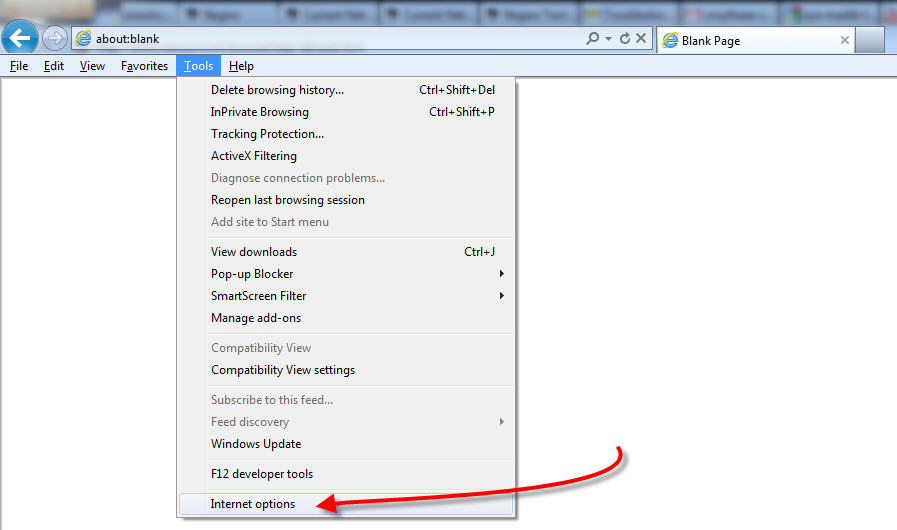
- Click on Tools
Note: If you cannot view the TOOLS option then you can click on the ALT key while in Internet Explorer to display it
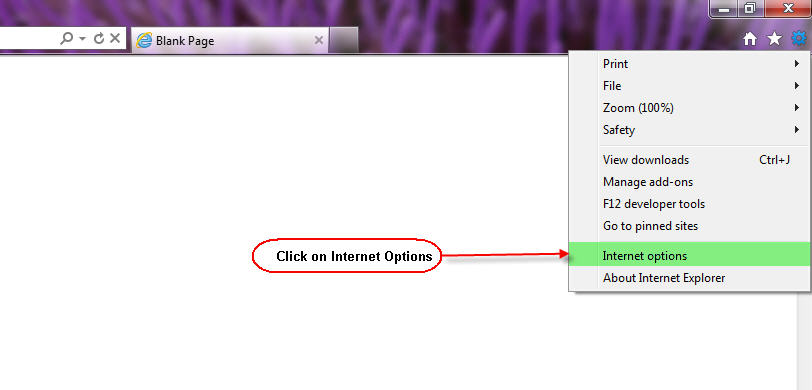
OR Alternatively
- Click on Internet options
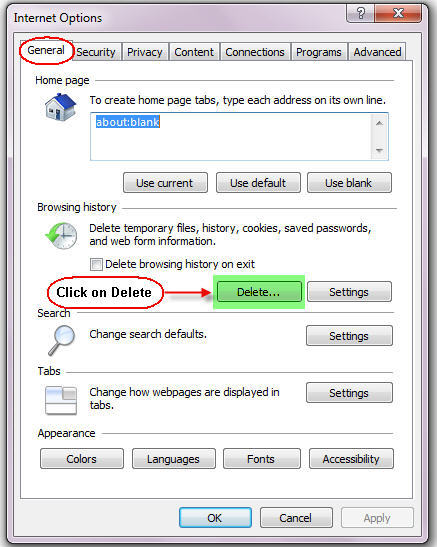
- Click the General tab, and then, under Browsing history, click Delete
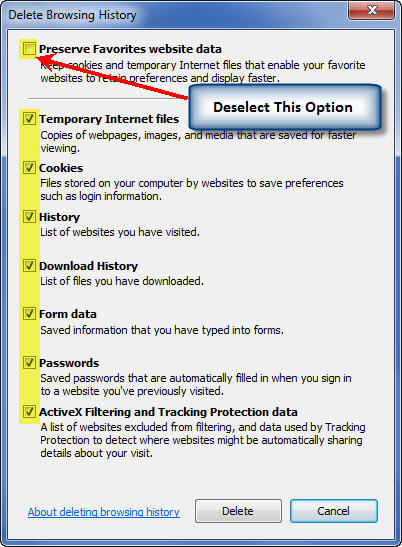
- In the Delete Browsing History dialogue box, select Temporary Internet files and click Delete
- Restart Internet Explorer


If the problem with the browser still persists, follow the below instructions to reset your browser to factory settings:
- Save all your work and close ALL your IE windows
- Open up a new IE window
- Click on Tools
OR Alternatively
- Click on Internet Options
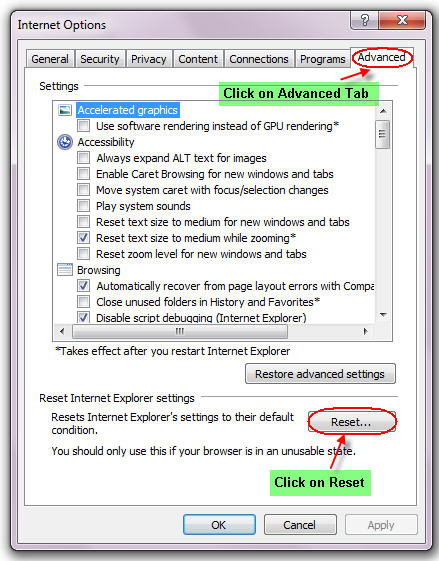
- Click on Advanced Tab and Click on Reset
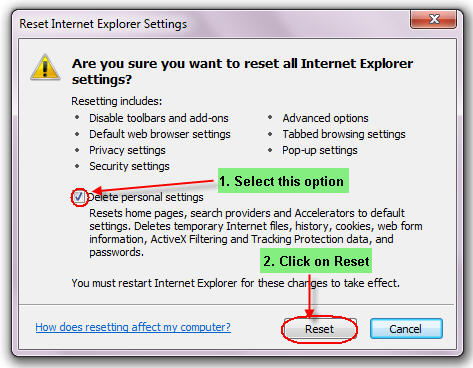
- Select Delete Personal Settings Option and Click on Reset
- Restart Internet Explorer


