Internet Explorer 9: Difference between revisions
From NEOSYS User Support Wiki
Jump to navigationJump to search
No edit summary |
No edit summary |
||
| Line 31: | Line 31: | ||
<BR> [[IMAGE:IE9_Click on Reset.JPG]]<BR> | <BR> [[IMAGE:IE9_Click on Reset.JPG]]<BR> | ||
==== Restart Internet Explorer ==== | ==== Restart Internet Explorer ==== | ||
==== Reconfigure Internet Explorer ==== | |||
Refer to [http://userwiki.neosys.com/index.php/Setting_up_and_Configuring_NEOSYS_Generally#Configuring_Internet_Explorer Configuring Internet Explorer] to learn how to configure Internet Explorer before using NEOSYS. | |||
Revision as of 13:13, 8 February 2012
Clearing the Cache
Save all your work and close ALL your IE windows
Open up a new IE window
Click on Tools
Note: If you cannot view the TOOLS option then you can click on the ALT key while in Internet Explorer to display it

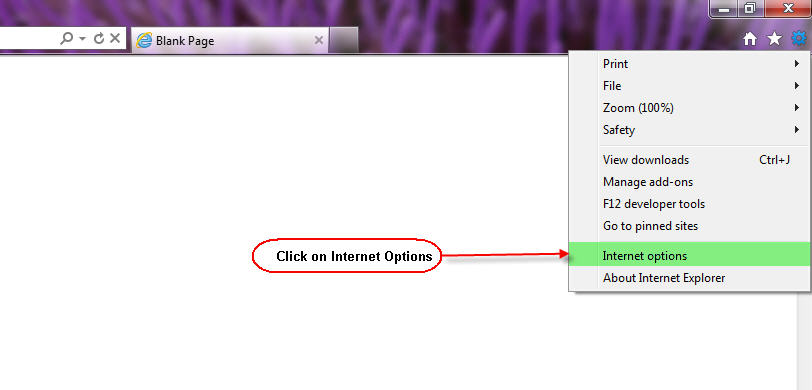
OR Alternatively

Click on Internet options
Click the General tab, and then, under Browsing history, click Delete

In the Delete Browsing History dialogue box, select Temporary Internet files and click Delete

Restart Internet Explorer
If the problem with the browser still persists, follow the below instructions to reset your browser to factory settings:
Reset Browser to Factory Settings
Save all your work and close ALL your IE windows
Open up a new IE window
Click on Tools
OR Alternatively
Click on Internet Options

Click on Advanced Tab and Click on Reset

Select Delete Personal Settings Option and Click on Reset

Restart Internet Explorer
Reconfigure Internet Explorer
Refer to Configuring Internet Explorer to learn how to configure Internet Explorer before using NEOSYS.
